


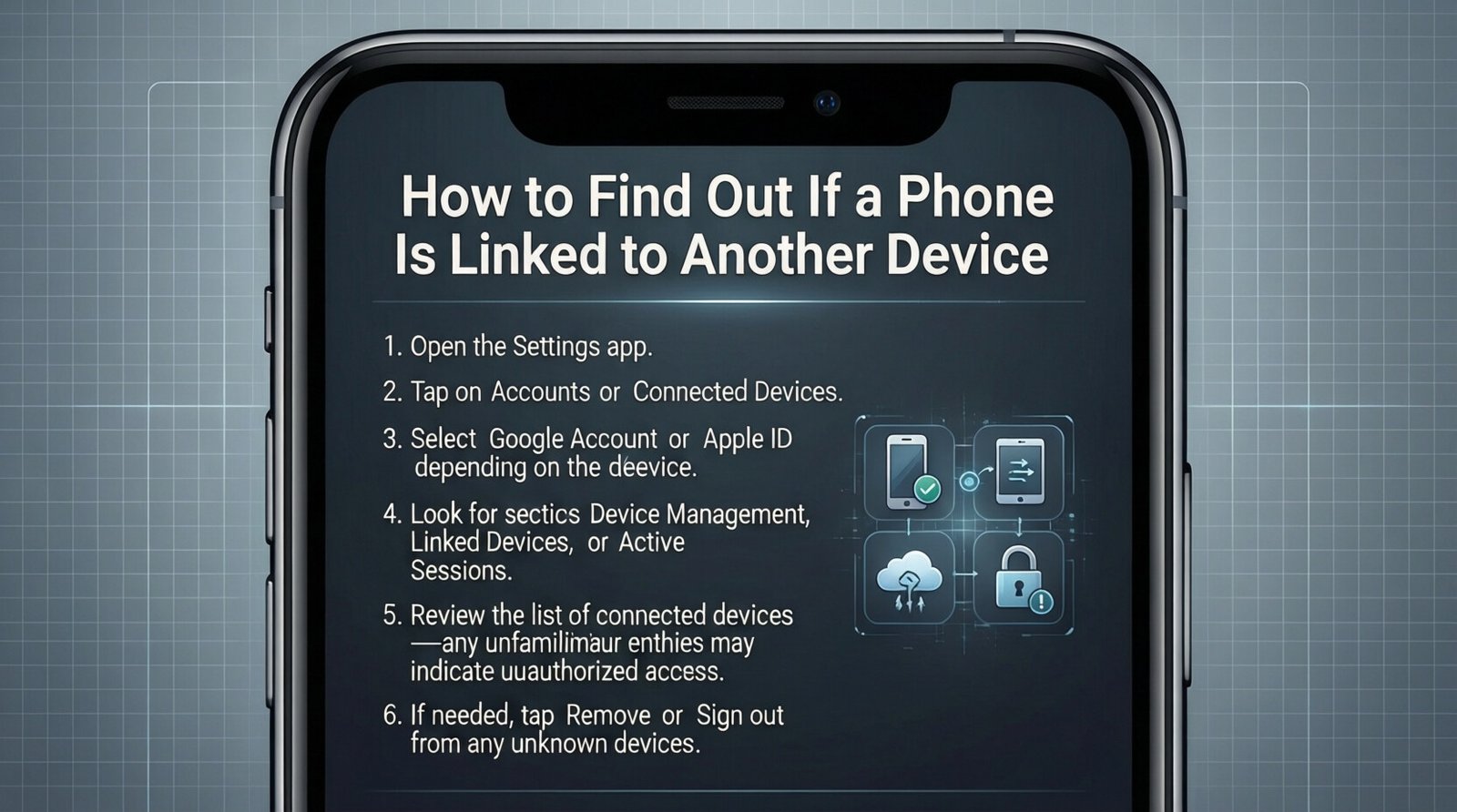
Your smartphone holds your entire life. Photos, messages, banking apps, and personal conversations all live on that small device in your pocket. So when you start wondering, "How do I know if my phone is linked to another device?" it makes sense to take action quickly. Someone could be reading your texts, tracking your location, or accessing your private accounts without your knowledge. This guide will show you exactly how to check for linked devices and what steps to take if you find something suspicious.
Why Phones Get Linked to Other Devices
The numerous reasons seem genuine enough for letting one phone connect with another. Syncing the phone with a tablet, laptop, or smartwatch is simple enough. Family sharing features are those that create indirect connections between devices linked to each other. Besides this, it is cloud services, such as Google or iCloud, that lead to having different devices linked together all under one account for easy access.
As far as oppressive situations go, this is one where such connections are made against the will of the owner. An ex, a suspicious partner, or even a hacker could link your phone to their device; once connected, they can view your messages, track your movements, or even access your personal data.
How Do I Know If My Phone Is Linked to Another Device?
The first step is checking your account settings. Both Android and iPhone make this fairly simple. You just need to know where to look.
Open Settings on your Android phone and touch Google. Select "Manage your Google Account" and choose Security. Scroll down until you find "Your devices" or Devices with account access. It contains everything on which your Google account is currently signed in. Be careful about this list; if you see an unknown phone, tablet, or computer, someone else might have access to it.
For the iPhone, it works the same way. Go to Settings, tap on your name at the top of the screen, and all devices linked to your Apple ID are included in the list. Each appears with a name and type. You should recognize every item on this list.
Warning Signs That Something Is Wrong
Before you could check your settings, you might be able to notice abnormal behavior. The discovery that a phone's battery drains faster than usual. Data consumption increases much too much, leaving it unexplained. Alerts will notify you of logins from previously unknown locations. Apps opening and closing all by themselves. Sluggish phone use or an idle, very hot phone.
Usually, these signs might not mean that someone has attached themselves to your device. Software problems and aged hardware display the same issues, but these are the odd warning signs to raise the eyebrows.
Checking Third-Party Apps and Services
Your phone is linked to more accounts than just Google and Apple accounts. Let's take a moment to think about many of the apps that you use every day: which allows users to connect with other devices through the internet? WhatsApp Web, Facebook Messenger, Telegram, and Instagram are all good examples. By gaining short access to your phone, someone could link such apps to their home computer.
Open each messaging app and look for active sessions. In WhatsApp, go to Settings and tap "Linked Devices." All browsers or desktop apps connected to your account will be visible. Remove anything you don't recognize immediately. You might do the same for other messaging platforms and social media apps.
How to Remove Unwanted Linked Devices
Saw something on your phone that looks suspicious? Act fast. Sign out, as that same unfamiliar device appears in the settings of your Google account, from your account now. And almost in an instant, that device becomes a kicked-off account holder. Right after that, change your password.
For an iPhone, one can tap on any device under the settings of Apple ID and choose the option "Remove from Account." Change your password immediately after this. Two-step verification has to be turned on if you have not already done so, and that way you add a very serious extra layer of protection that makes unauthorized access much harder.
Protecting Your Phone Going Forward
Protection is always better than detection. Use strong and unique passwords for all your accounts. Activate biometric locks like either fingerprint or face recognition. Use two-step verification wherever it is possible. Never leave your mobile without it being locked in front of people you do not trust that much.
Keep monitoring those linked devices fairly often. Make it a habit to review linked devices or accounts monthly. The sooner you catch unauthorized access, the less damage someone can do. Also review app permissions every once in a while. Some apps ask for pretty unnecessary permissions.
Take Control of Your Privacy Today
Your phone privacy matters. Now that you understand "How do I know if my phone is linked to another device?" you can take control of your digital security. Check your account settings on both Android and iPhone. Review third-party apps for active sessions. Remove anything that looks unfamiliar and update your passwords. These simple steps protect your personal information from prying eyes. Make device security a regular habit, and you will sleep better knowing your private life stays private.

 English